

Hilton Head Island Pickleball Courts, Clinics & Tournaments
Experience the fastest growing sport in America, lowcountry style
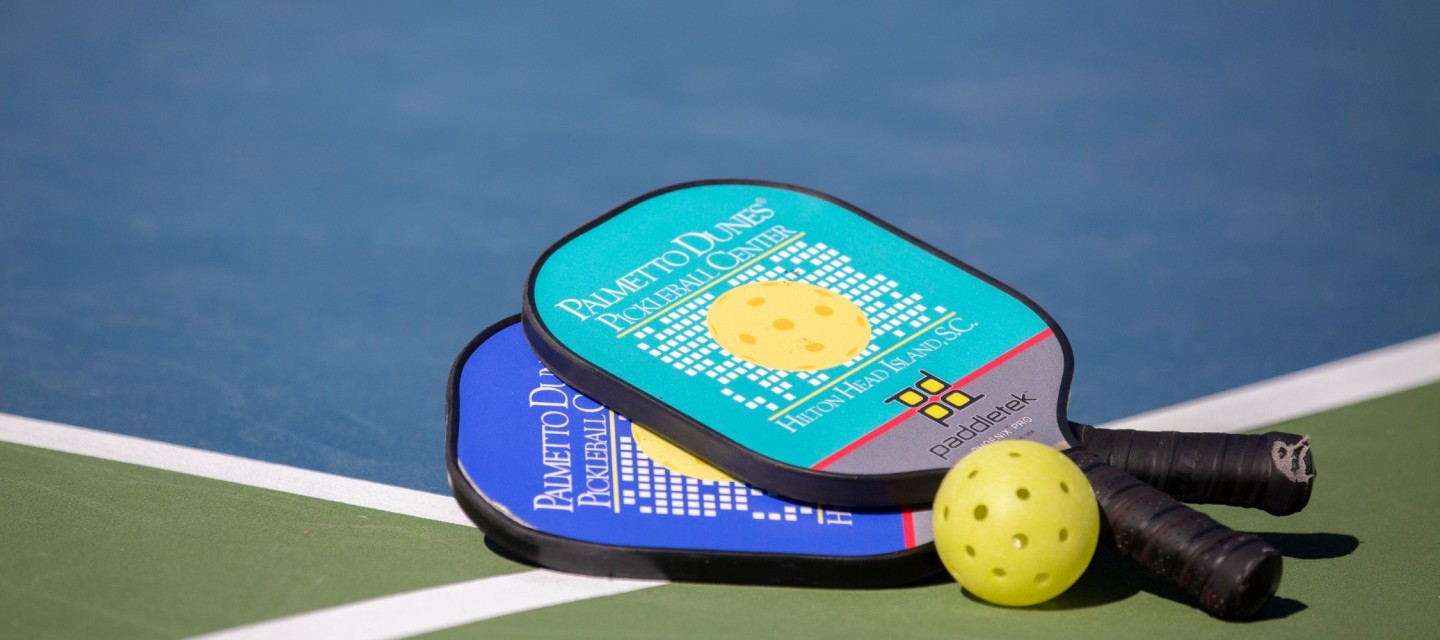
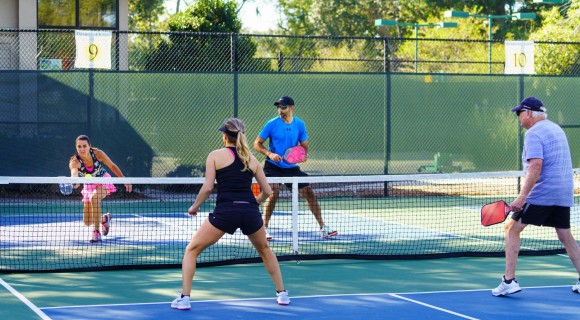
Put tennis, badminton and ping pong in a cocktail shaker, and you’ve got Pickleball. And no one serves up this unique and fun sport like Palmetto Dunes. Created in 1965, Pickleball is played with oversized paddles and a softball-sized plastic ball that travels substantially slower than a tennis ball. The Palmetto Dunes Tennis & Pickleball Center features 24 dedicated Pickleball courts, 8 lighted for night play via the timer system, and one of the most comprehensive instructional programs on the east coast. It is a fun and simple game to pick up at any age, but can take a lifetime to master.
Regular Tennis & Pickleball Center Pro Shop Hours:
Sun - Sat: 7:00 a.m. - 5:30 p.m.
Select courts are lighted for night play through 10 p.m.



From the blog

Pickleball & Paradise: What a Day of Play Looks Like at Palmetto Dunes
Imagine waking up to a gentle ocean breeze, paddle in hand, and a full day of island adventure ahead. At Palmetto Dunes, pickleball is more than a sport—it’s part of the resort experience.



Stay and play at Palmetto Dunes
Book your vacation rental through Palmetto Dunes and get two free hours of court time daily when as well as up to 10% off lessons and clinics. And don’t miss our exclusive vacation packages designed specifically for pickleball players. Guests also receive up to 15% off golf, resort dining, bike rentals and more!
Pickleball Rates
Pickleball courts are available at hourly rates. Interested in a custom pickleball quote? Our vacation planners will work with you to create the perfect pickleball package.
Featured Blog Article

Palmetto Dunes Tennis & Pickleball News - March 2026
Review our monthly tennis and pickleball news for information and details on upcoming events, sneak peeks into what's happening on the courts, and more!
Frequently Asked Questions
Yes, you can!
COMPUTER: Hover your cursor over Your name and then select My Bookings.
MOBILE DEVICE: Tap on the More icon on the bottom right corner and then tap on My Bookings. You will see a list of your current, past and cancelled reservations.
Each account must have a unique email address. No two accounts can use the same email address.
Yes. Pickleball paddles and tennis racquets rentals are available for players in the pro shop. $5 for a tennis racquet and $4 for a pickleball paddle for their court time. For lessons, clinics or round robins there is no charge for paddles or racquets.
Proper tennis attire is required. Closed-toed athletic shoes only no crocs, men must have shirts on, and no sports bras or bikini tops. No flip-flops or sandals and clothing must be worn at all times.
If you want to get emails, including news of events, make sure you have NOT ticked the Unsubscribe from my Club/Organization's Emails/Alerts/Newsletters box under Personal Information.
-
Login to CourtReserve at https://app.courtreserve.com/Online/Portal/Index/6891.
-
COMPUTER: Hover your cursor over Clinics and click on List. MOBILE DEVICE: From the Home screen (located at bottom menu) select Clinics and tap on All Clinics. Or, if you are looking to sign up for a Pickleball Round Robin, select this option.
-
You will be shown the next 7 days of upcoming clinics based on today’s date. COMPUTER: To browse more dates, more clinics or by category, select options from the filter. MOBILE DEVICE: To browse more dates, more clinics or by category, tap on filter button at the top.
-
COMPUTER: Click on View Upcoming Dates to learn more about the clinic like a description, instructor, courts used and policy MOBILE DEVICE: Tap on the clinic to learn more.
-
Click or tap on Register if you want to sign-up or tap on the dates tab at the bottom and tap on register under the date/time you are looking for.
-
Please enter your billing and credit card information. You can save your payment information to pay for any future reservations. After you’ve paid you can print your receipt. Remember you can view all upcoming reservations in CourtReserve.
-
Login to your CourtReserve account at https://app.courtreserve.com/Online/Portal/Index/6891.
-
COMPUTER: Select Court Reservations and select Book a Tennis Court or Book a Pickleball Court from the drop down menu. MOBILE DEVICE: From the home menu, tap on Court Reservations and tap on Book a Tennis Court or Book a Pickleball Court from the menu.
-
You will be presented with the booking grid for the current day. Use the arrows or calendar to change your dates. Please remember you may only be able to see today and tomorrow on the booking grid because of the above rules and restrictions.
-
If there is a time/slot available, the “RESERVE ##:## AM/PM” will be viewable on top of a white space. Click/tap on this on the court and time that you want to book.
-
Select duration. You will be presented with the maximum times available in our system but remember you will be limited to the time the court is available on the booking grid. You may be able to select more time, but you will be prompted that there are no courts available if there is not enough time available.
-
Select guests if you like. If you know someone already has an account you can search and select them to add to your court time. COMPUTER: Enter at least 3 letters of the player’s last name in the Additional Player(s) field, scroll and select the player you’d like to add to the list. MOBILE DEVICE: Tap on the Player(s) area where your name is present. Enter at least 3 letters of the player’s last name in the Additional Player(s) field, scroll and select the player you’d like to add to the list. Tap on the add button. You can add up to 3 other players.
-
Agree to the disclosure. COMPUTER: Click on view more to view the full disclosure and then check the “Check to agree to above disclosure” checkbox. MOBILE DEVICE: Tap on the Reservation disclosure area to view the full disclosure and the toggle to the right the “Check to agree to above disclosure” toggle.
-
Press SAVE to complete the reservation.
-
Please enter your billing and credit card information. You can save your payment information to pay for any future reservations. After you’ve paid you can print your receipt. Remember you can view all upcoming reservations in CourtReserve.
-
Login to Court Reserve at https://app.courtreserve.com/Online/Portal/Index/6891
-
COMPUTER: Hover your cursor over Lessons and and select Pickleball or Tennis Lessons. MOBILE DEVICE: From the Home screen (located at bottom menu) select Lessons and select Pickleball Lessons or Tennis Lessons.
-
Tennis & Pickleball Lessons are available to reserve 14 days in advance for any guest type. You will be presented with the booking grid for the current day. Use the arrows or calendar to change your dates. Be sure to look at the top of the booking grid to see which instructor you’d like to book a lesson with.
-
If there is a time/slot available, the “Schedule ##:## AM/PM” will be viewable on top of a white space. Click/tap on this on the court and time that you want to book. Click/tap on the time that you want to book in the column of the instructor you’d like to book. If (Appointment Only) is listed next to the instructor’s name, this instructor is only available to be booked over the phone. Please call 855-859-3671 to inquire about lessons with this instructor.
-
COMPUTER: Select the lesson type from the drop down. If you select semi-private, then you can add another player that’s already in Court Reserve. This is not required. MOBILE DEVICE: Select the lesson type, private, semi-private, custom clinic etc.
-
Please check the information regarding your lesson (name, instructor, lesson type, date, time and duration). Click/Tap SAVE to book your lesson.
-
Please enter your billing and credit card information. You can save your payment information to pay for any future reservations. Remember you can view all upcoming reservations in CourtReserve.
If you cancel your reservation (court/clinic/lesson) for any reason, outside 1 hour prior to your reservation, you will receive a full refund of your fee. Within 1 hour prior to your reservation there are no refunds at all.
-
COMPUTER: Hover your cursor over Your name and then select My Bookings. Locate the reservation you’d like to cancel. MOBILE DEVICE: Tap on the More icon on the bottom right corner and then tap on My Bookings. Locate the reservation you’d like to cancel. You can click on the filter button to narrow your search.
-
Click/Tap on EDIT REGISTRATION. Click/Tap on WITHDRAW (for clinics) or CANCEL RESERVATION (for courts). If you prepaid, it will show a green paid icon next to the family member registered. You can enter a reason for the cancellation, but this is not required. You may need to tap/click cancel/withdraw again to confirm. It may take up to 10 minutes for the refund to show in the Billing section.
It may take 5 business days before the credit shows up on your Bank account if paid in advance.
If you feel you are getting too many emails from Court Reserve…
COMPUTER: Hover your cursor over Your name, click on Personal Information and click on the Notifications tab to uncheck the notifications that you don't want to receive. MOBILE DEVICE: Tap on the more icon on the bottom right corner and then tap on Personal Information. Tap on the notifications tab and uncheck the notifications that you don’t want to receive.
-
Click on the following link https://app.courtreserve.com/Online/Portal/Index/6891
-
Use the LOG IN button at the top to sign in or use the CREATE ACCOUNT button at the top to create an account.
-
Click the Forgot Password? link if you need to retrieve your password. A link will be sent to your email to allow you to reset your password. Check your junk folder if you don't see it.
-
When you have the proper login credentials, return to the Login screen and log in.
-
Hover over your name (or select more if on a mobile device) and select My Family. Please be sure to add your family members (spouse and/or children) or guests that you need to book and pay for. PLEASE NOTE: For members, please be sure to add family members according to the membership policy.
COMPUTER: Hover your cursor over Your name and then select Personal Information. MOBILE DEVICE: Tap on the More icon on the bottom right corner and then tap on Personal Information.
Please be sure to add an email address and phone number so you can receive notifications involving your reservations, like weather delays/cancellations etc.
Reservation rules can differ by guest or membership type:
-
Clinics & Programs are available to book online based on availability for any guest type.
-
Tennis & Pickleball Lessons are available to reserve 14 days in advance for any guest type.
-
Tennis & Pickleball Court time differs based on guest type: Any guest or member can reserve court time 3 days in advance. Tennis Members can reserve tennis court time up to 7 days in advance. For guests staying in Palmetto Dunes Resort managed vacation rentals that receive complimentary court time daily, please create an account and then contact the Tennis & Pickleball pro shop at 855-859-3671 to confirm your status. Guests staying in Palmetto Dunes managed rentals can reserve court time 5 days in advance.
-
The lighted courts may be used on a first-come, first-serve basis, any time after dark until 10:00 p.m.
If the monitor on staff cancels a court due to rain/unplayable conditions, you will receive a full refund of your fees.
If you cancel your court for any reason, outside 1 hour prior to your reservation, you will receive a full refund of your fee. Within 1 hour prior to your reservation there are no refunds at all.
Refunds are done manually over the phone and in person. It may take up to 5 business days (depending upon your bank) before the credit shows up on your Court Reserve account or Bank account if paid in advance. To see all information regarding transactions and refunds, check your account under Billing > Transactions > All.
If in doubt about the weather, call us to check, or simply cancel the court yourself (prior to 1 hour before a booking starts) to assure a refund. If you book to play during unstaffed hours, you need to cancel your own court, prior to 1 hour before the booking starts, to get your refund.
Court Reserve is the online registration and booking system that Palmetto Dunes uses to manage its membership and facilitate court, lessons and clinic bookings.
-
For individuals and small groups, cancellations must be made at least one hour prior to any clinic, lesson, or round-robin in order to receive a refund.
-
For large groups that book activities and court time in advance, 48 hours is needed in order to make a cancelation.
-
For any information regarding cancelations please call 888-879-2053.